Edit your campaign website
Editing your Practice Campaign Website
Once you have access to your Practice Campaign Website here is a guide to editing
For more detailed documentation go to the connectionpoint Help Center
Step 1
Make sure you are on the dashboard
Your dashboard will look like the image below.
If you can’t find it go to https://petfundr.com/find and search on your website name.
You can login using the”Sign in” link at the top right. (You can reset your password if you can’t remember it)

Step 2
Editing your website
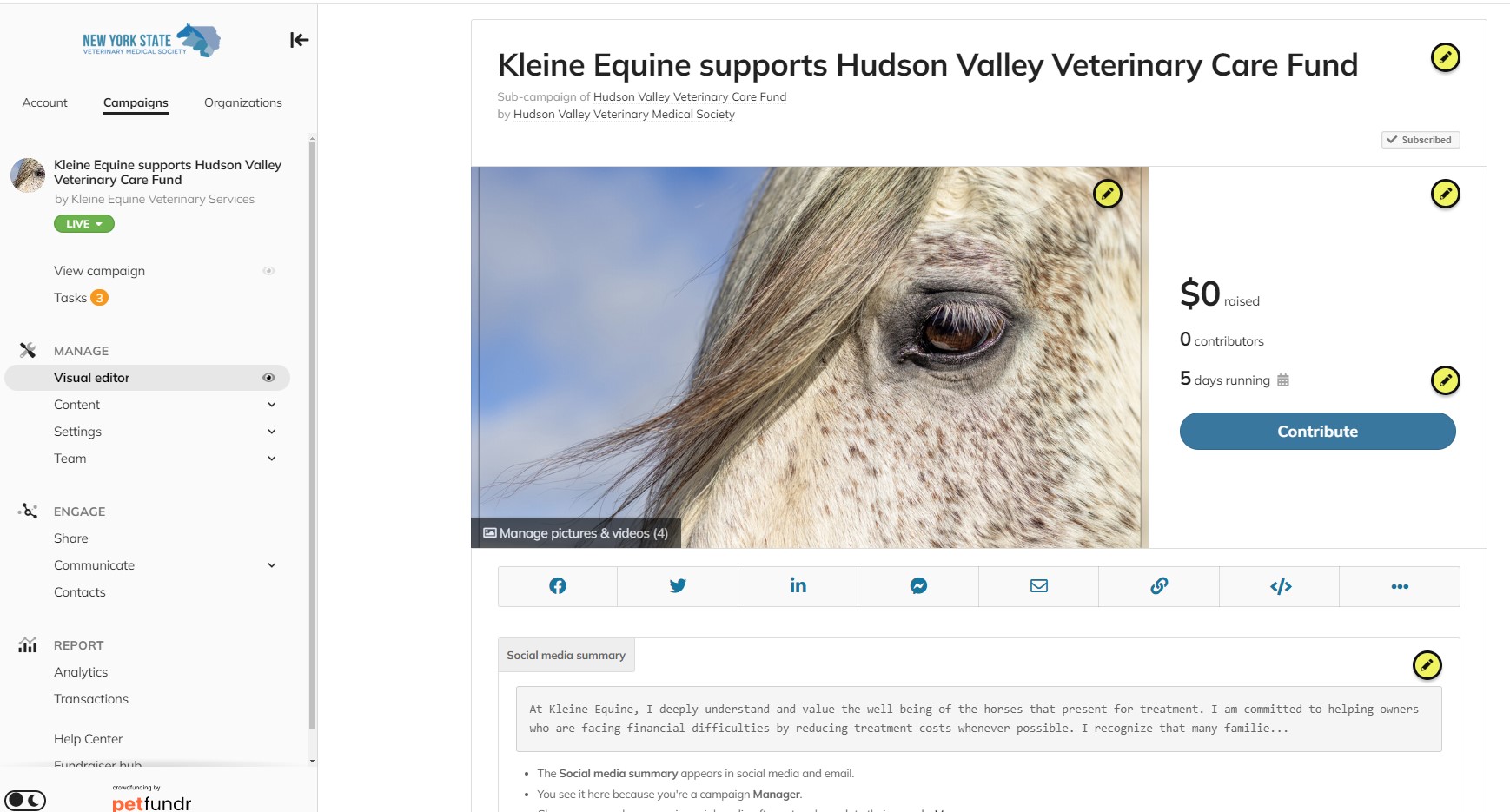
Click on the “Visual Editor” tab in the menu on the left. You can use the other tabs to help you.
You will then see yellow arrows that enable you to edit every section
The menu also allows you to add team members.
Note the black button that enables you to manage pictures and videos. That will enable you to load up more images